
Change Your Membership
This page guides you through how to change your membership.
To view what is included in the membership options go here.
Membership Management Guide
Watch Video Tutorial here for desktop/laptop👇🏼
Watch here for Video Tutorial for mobile phone
Changing your Madeit membership Plan
- We walk you through changing your membership plan
- Checking when your next payment is due and the total due
- Update payment methods - on mobile
- Downloading previous membership invoices/receipts
1. Log into Your Madeit Account 0:00
- Access your Madeit account by logging in.
- Navigate to the settings menu.
2. Access Membership Settings 0:10
- Click on the settings menu to open a dropdown.
- Select 'Membership' to view your current plan.
3. Identify Your Current Plan 0:16
- Check the panel that displays your current plan (e.g., Artisan plan).
- Note that the current plan is highlighted in blue.
4. Choose New Plan 0:40
- Decide whether to upgrade or downgrade your plan.
- Click on the desired plan (e.g., Business plan) to select it.
5. Confirm Plan Change 1:03
- After selecting the new plan, a confirmation button will appear.
- Click 'Update Subscription' to confirm your choice.
6. Check Billing Information 1:31
- In the membership panel, locate 'My Billing' and click on it.
- Ensure pop-ups are enabled to view the new window.
7. Review Billing Details 1:48
- Check the new window for your current plan, next billing date, and amount due.
- Click 'View Details' to see changes made and payment history.
8. Update Payment Method (if necessary) 2:15
- If needed, update your payment method in the billing section.
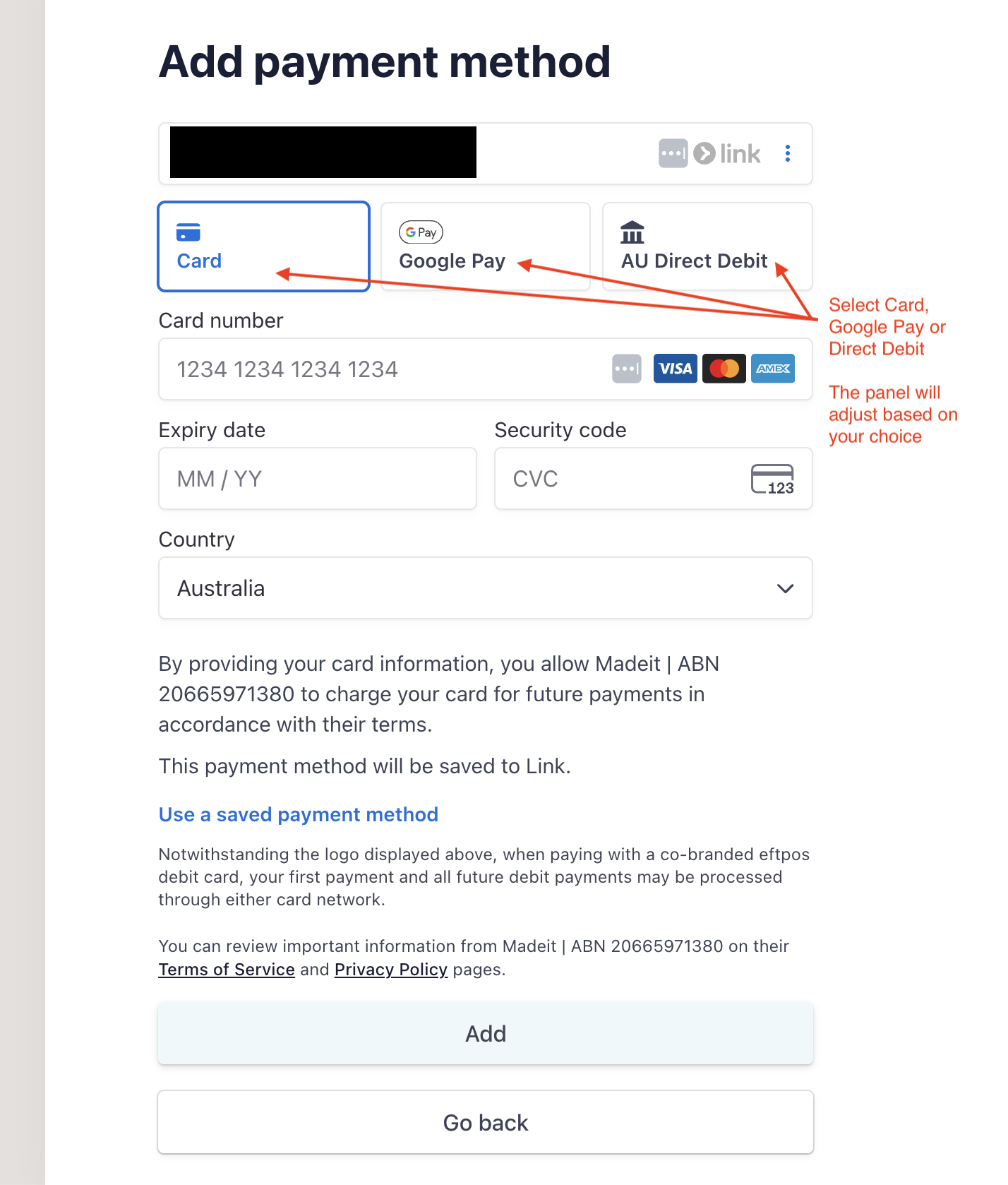
- Select Add Payment Method and select Pay Another Way
- Choose Card, Google Pay or Direct Debit. The panel will adjust based on your choice. Enter the payment method and confirm.

-
Access your invoice history to retrieve previous invoices.
9. Return to Dashboard 2:27
- After reviewing your billing information, click 'Return to Madeit' to go back to your store.